A reverse image search can give you more info about any picture you see online, and you can do it right on your iPhone. Here's how.
How to Do a Reverse Image Search on Your iPhone
You’ve probably used a search engine, such as Google, to find a picture of something online. But did you know you can also find out where a particular image originally came from? This is known as a reverse image search, and even better, you can easily do a reverse image search on your iPhone.
Perhaps you’ve seen a cute dog or cat picture online (isn’t that what the internet is for?), and you want to find out what breed it is or find some similar photos. That’s where reverse image search comes in handy. A reverse image search can help you track down the original source of a picture, find similar or identical pictures posted elsewhere, or identify subjects in a photo. You can even use it to look up products for shopping online!
Reverse image searching is one of the handiest iPhone tricks out there, and it’s not hard to do at all. Keep reading, and we’ll lay out all the different tools available that will make you an expert internet photo sleuth in no time.
Get Reader’s Digest’s Read Up newsletter for more tech, humor, travel, cleaning and fun facts all week long.
Can I reverse image search on my iPhone?
Yes. You don’t need a computer to perform a reverse image search. In the past, you had to use a web browser or third-party app to perform a reverse image search. Today, however, there are several ways to perform a reverse image search on your iPhone—and you don’t have to download any new apps to do it.
All you need is a browser app, such as Google Chrome or Safari, which should already be installed on your iPhone by default. Let’s break down each method step by step, starting with the browser apps.
How to do a reverse image search with Google Chrome
Using an image from image search results
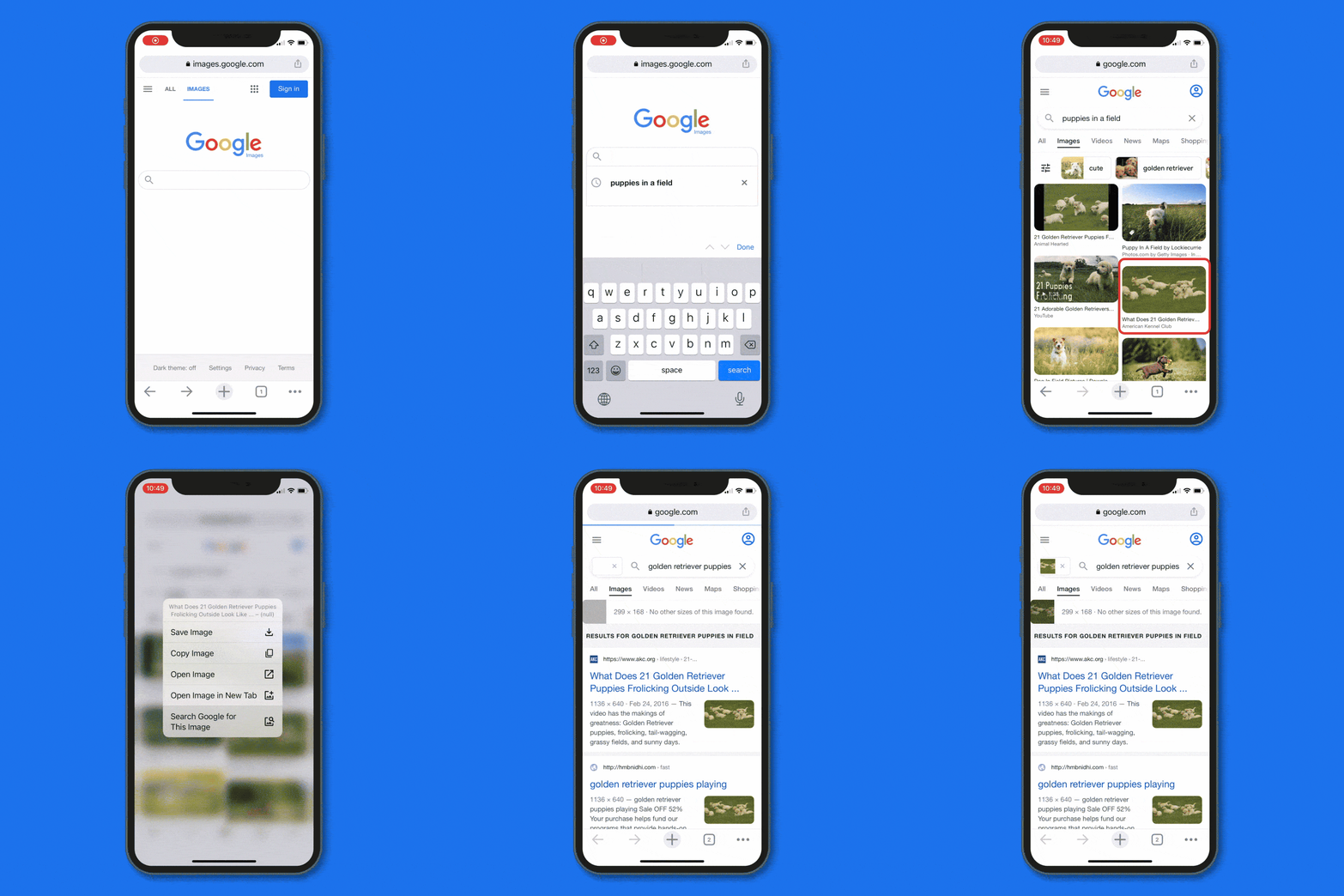
- Open the Google Chrome app.
- Navigate to images.google.com.
- Search for the image you want using relevant keywords.
- When you see an image you want to reverse search, tap and hold it until a menu pops up.
- In the pop-up menu, tap “Search Image with Google” to bring up the reverse image search results.
Using a photo in your Photos app
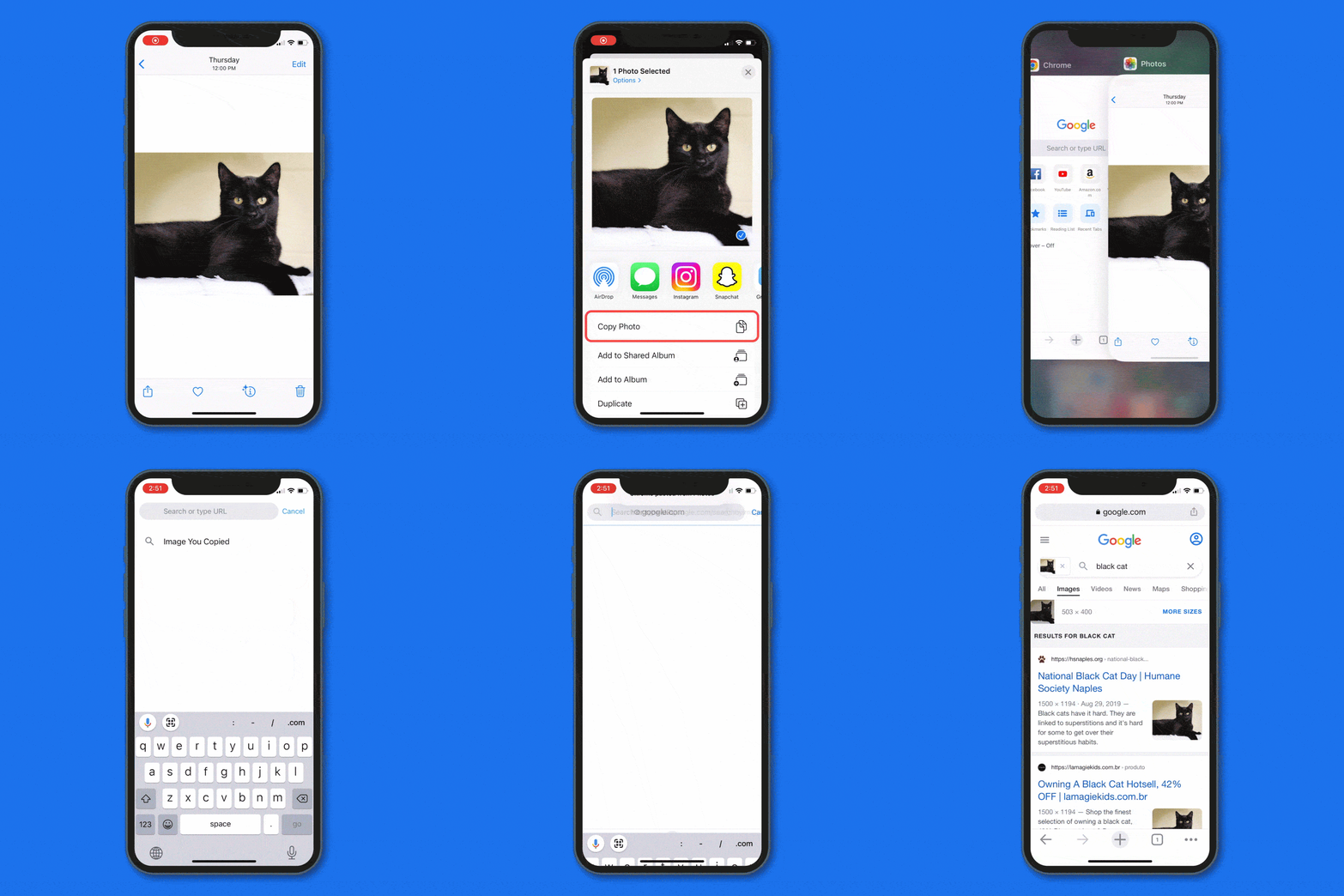
- Open the Photos app.
- In your Photo Library, tap and hold on the photo you want to search.
- Select “Share.”
- Find Chrome in the row of apps that appears (you may have to scroll right) and tap on it.
- Tap the “Search in Chrome” button to bring up the reverse image search results.
Alternatively, you can do this directly from Chrome:
- Open the Chrome app.
- Tap the camera icon in the search bar.
- Tap the photo icon in the lower left corner.
- Select a photo from your Photo Library that you want to search (you may need to give Chrome permission to access your Photo Library first).
Troubleshooting tip: If the camera icon doesn’t appear in the Chrome search bar, try navigating to images.google.com instead. If it doesn’t appear there either, try requesting the desktop site by opening the Chrome menu (tap the three-dot icon in the lower right corner) and selecting “Request Desktop Website.”
How to do a reverse image search with Safari
Using an image from image search results
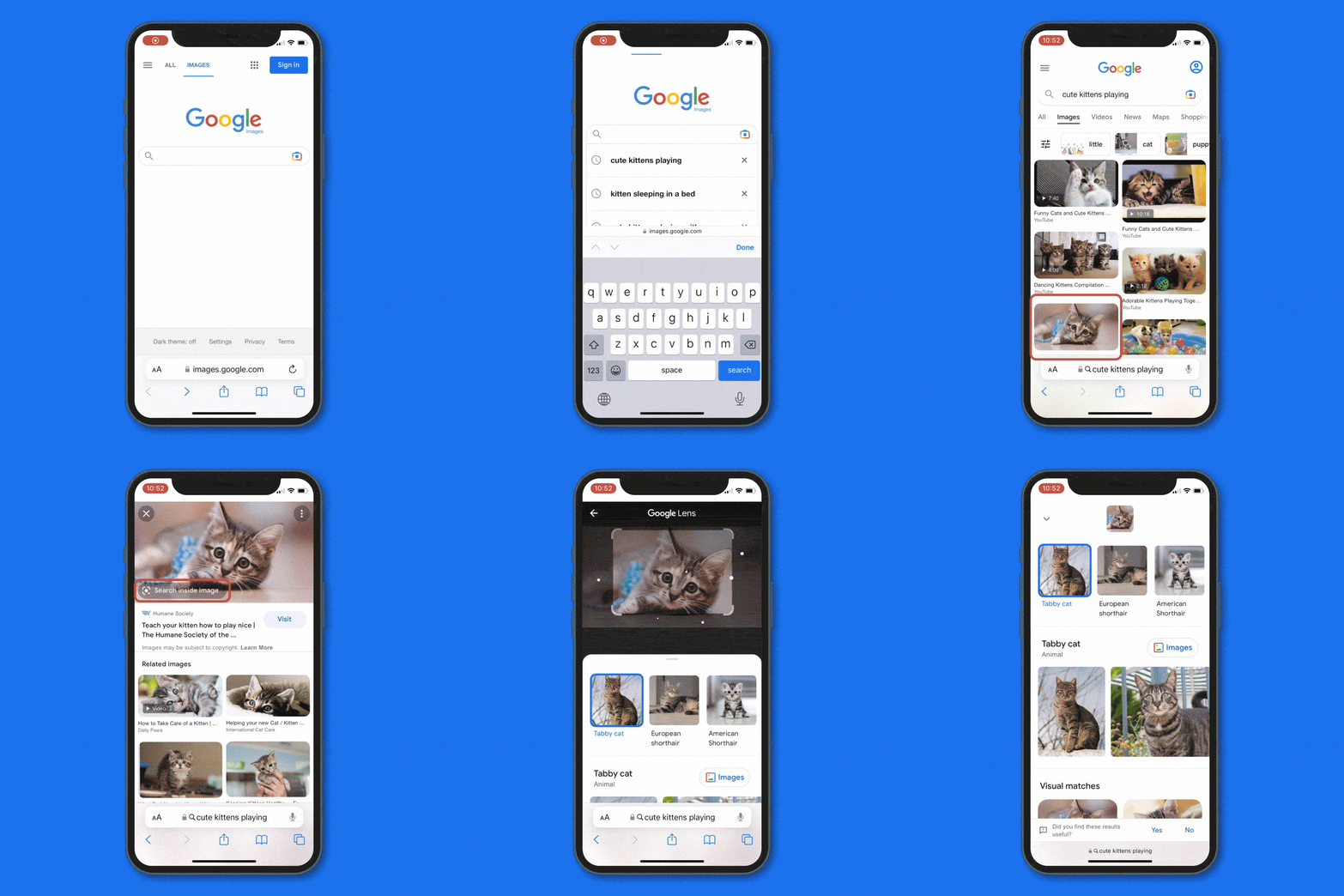
- Open the Safari app.
- Navigate to images.google.com.
- Search for an image.
- Tap on a picture to open a detailed view.
- Tap on the camera icon in the lower left corner of the image to bring up the reverse image search results.
Troubleshooting tip: If the camera icon doesn’t appear, make sure your Safari app is updated to the latest version. Alternatively, you can request the desktop version of Google Images. To do this, tap the menu icon in the Safari search bar (not the Google search bar) in the lower left corner of the screen. Then tap the icon with three dots and select “Request Desktop Website.”
Using a photo in your Photos app

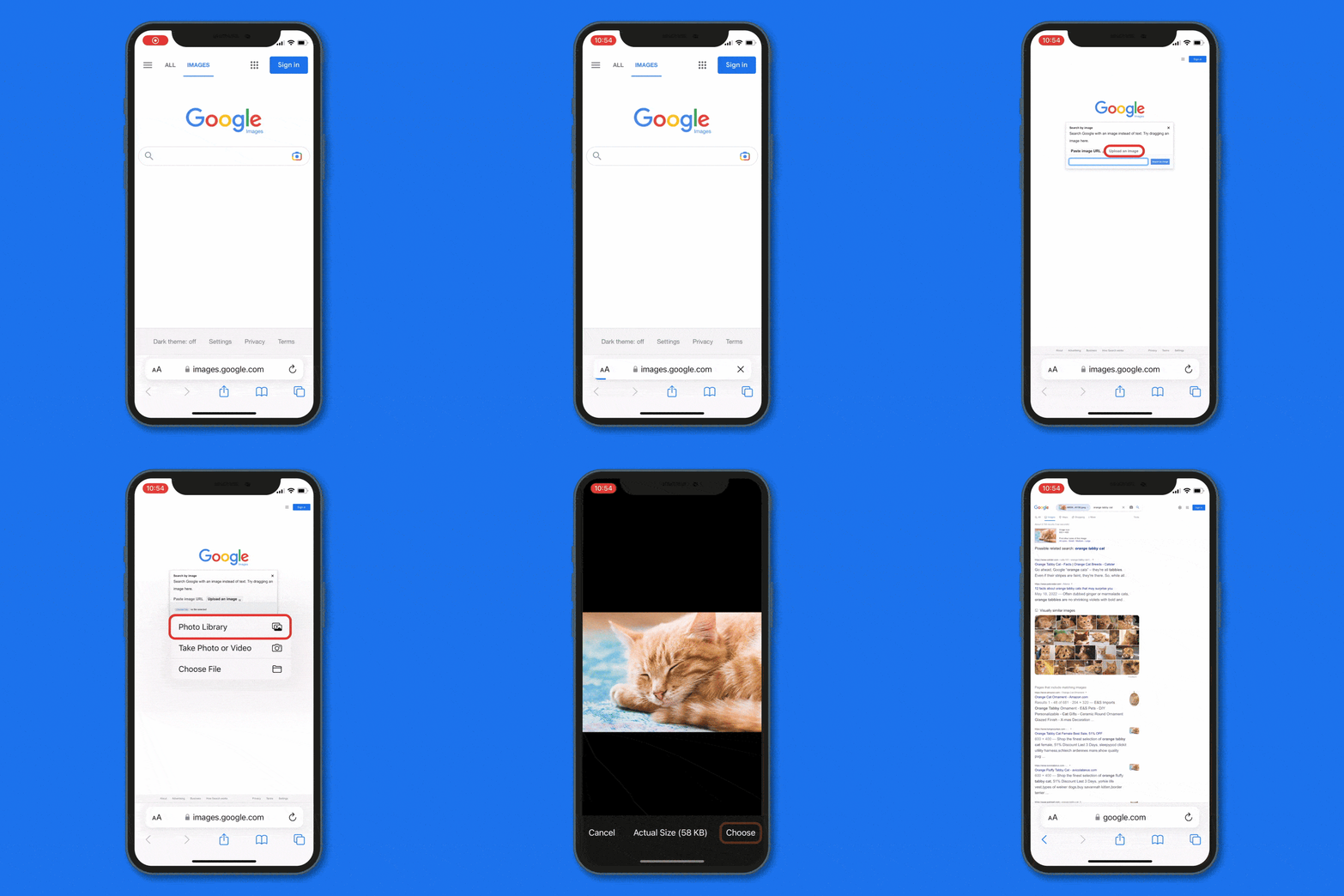
- Open the Safari app.
- Go to images.google.com.
- Tap the menu icon in the Safari search bar in the lower left corner of the screen.
- Tap the icon with three dots and select “Request Desktop Website.”
- Tap the camera icon in the search bar.
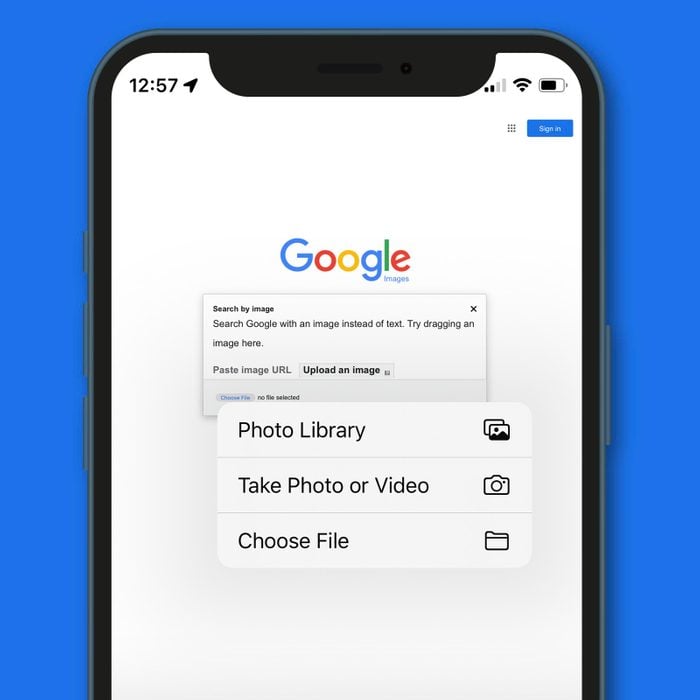
- Tap “upload a file” in the search window.
- Tap “Photo Library” and select the photo you want to search.
Troubleshooting tip: Desktop versions of websites are designed for viewing on a computer screen, and they can be hard to view and read on mobile devices. If necessary, use two fingers to zoom into the desktop version of Google Images to make it more legible. When zoomed into a website’s desktop version on your phone, you may have to tap and hold the screen, then “drag” the website around on your screen to bring certain elements into view.
Does reverse image search work with Live Photos or videos on iPhone?
Reverse image searching doesn’t work with videos on your iPhone and only works partially with Live Photos. With a Live Photo, you can only perform a reverse image search using the still image version of the photo (the .jpeg that your iPhone saves as a still photo in your Photo Library).
Although you can’t do a reverse image search on a video to find its original source, you may still be able to find out more about it. If you want to find out more about a particular subject in the video, take a screenshot of a frame from the video and use that still photo to perform a reverse image search. Alternatively, certain AI tools like ChatGPT and Gemini can analyze video files and potentially offer some additional information or insights.
Next, we’ll take a look at using AI tools to perform a reverse image search.
How to reverse image search using AI
Using ChatGPT

- Open the ChatGPT app or go to chatgpt.com in your browser.
- Tap the “+” icon in the mobile app or the paperclip icon if you’re in a browser.
- In the menu that pops up, tap “Photos” if on mobile or “Images” if in a browser.
- Grant ChatGPT access to your Photo Library if necessary, then choose the image you want to use.
- Give ChatGPT a prompt such as “find the original source of this image.”
Troubleshooting tip: ChatGPT relies on your instructions, so make sure your prompt is simple and clear. If ChatGPT is acting slow or failing to load, it may be experiencing heavy traffic at the moment. Consider waiting and trying your search again later.
Using Google Gemini

- Open the Gemini app or go to gemini.google.com in your browser.
- Tap the “+” icon in the “Ask Gemini” bar.
- Tap “Camera” in the mobile app or “Upload Files,” then “Photo Library” if in a web browser.
- Tap the photo icon in the lower left.
- Grant Gemini access to your Photo Library if necessary, then select an image that you want to search.
- Give Gemini a prompt such as “find the original source of this image.”
Troubleshooting tip: As with ChatGPT, Google Gemini relies on your instructions, so make sure your prompts are clear and direct. Heavy user traffic may also slow down Gemini or make answers fail to load. Consider waiting a while or trying another reverse image searching method if Gemini isn’t being responsive.
Can you use third-party sites or apps to do a reverse image search on iPhone?
Yes, there are a number of third-party sites and apps that allow you to do a reverse image search on your iPhone. In fact, before browsers like Chrome and Safari had built-in reverse image searching, these third-party tools were really the only way you could do it.
TinEye.com is one of the oldest and most popular reverse image search websites. Other search engines, such as Bing and Yandex, also feature a reverse image searching tool, similar to Google. There are also stand-alone apps, such as Reversee or Reverse Image Search & AI Lens.
What are the pros and cons of using third-party sites and apps?
The benefit of third-party websites or apps is that they can help you cast a wider net if your browser or AI searches aren’t giving you what you want. Because they use different search algorithms, these tools can sometimes find images or bring up similar results that Google might miss.
The drawback of these third-party apps and websites is that they typically have access to smaller image databases than Google and often deliver less accurate or useful search results. Google is the most powerful and popular search engine for a reason, after all. Third-party tools may also be less convenient than simply using Google in your favorite browser, especially if they require you to go out of your way to use them.
Our recommendation is to try Google and/or your favorite AI helper first. If you can’t find what you’re looking for with either of those, then you should consider using a third-party tool such as TinEye or Bing.
Is it safe to do a reverse image search on iPhone?
Doing a reverse image search on your iPhone is generally as safe as doing anything else, provided you aren’t using any dodgy apps or websites. Remember, if you’re doing a reverse image search on a picture in your Photo Library, whichever tool you’re using will require access to your Photos app. However, if you don’t want to grant access to your entire Photo Library, you can choose to only allow access to pictures you select when the app asks for permission. This will usually happen the first time you use an app to do a reverse image search on your iPhone.
Where will my reverse image search photos be stored?
Reverse image searching tools may also store uploaded images to a cloud when you perform a search. This cloud storage may only be temporary, but you should still be careful about using any potentially sensitive or personal photos when performing a reverse image search. That said, you can edit photos to crop out anything you don’t want uploaded. This can be useful if you’re trying to identify or get more information on a particular object in a photo rather than the entire image.
What else should I know about reverse image search safety?
AI models may also use uploaded images for their training data, so keep that in mind as well. Finally, privacy-conscious iPhone users should consider removing metadata, such as location information, from photos before performing a reverse image search. There are a number of third-party websites and apps that can do this.
Generally speaking, you should be in safe waters as long as you stick with trusted services (such as Google Images), don’t use any suspicious-looking apps or websites, and practice good iPhone security.
And there you have it: several ways you can quickly and easily perform a reverse image search right on your iPhone—no computer needed. And now that you’ve mastered the reverse image search, be sure to check out the hidden things your iPhone’s volume buttons can do for even more handy tips and tricks that will have you using your smartphone like a pro!
Why trust us
At Reader’s Digest, we’re committed to producing high-quality content by writers with expertise and experience in their field in consultation with relevant, qualified experts. We rely on reputable primary sources, including government and professional organizations and academic institutions as well as our writers’ personal experiences where appropriate. We verify all facts and data, back them with credible sourcing and revisit them over time to ensure they remain accurate and up to date. Read more about our team, our contributors and our editorial policies.
Source:
- Apple: “Use Apple Intelligence in Photos on iPhone”